
100% Free – No Sign-Up – Nothing Stored
New Digital business cards and calendar eventsFree Email Builder and Business Tools That Work in Your Browser
Design emails, create invoices, build a brand guide, make a digital business card, create calendar events, resize photos and videos, and put together clear AI prompts. Every tool is free, needs no account and runs in your web browser.
- No account or download
- Your files are not uploaded to our server
- Preview before you copy or download
Seven Free Tools for Everyday Business Tasks
Greeting Hard is a collection of free, browser-based tools for small businesses, job seekers and online sellers. Pick a tool, fill in simple fields, and copy or download the result.
Free Email Builder
Design an HTML email with a live desktop and mobile preview, then copy it as a ready-to-paste email or as HTML code.
- Five starter templates, or start blank
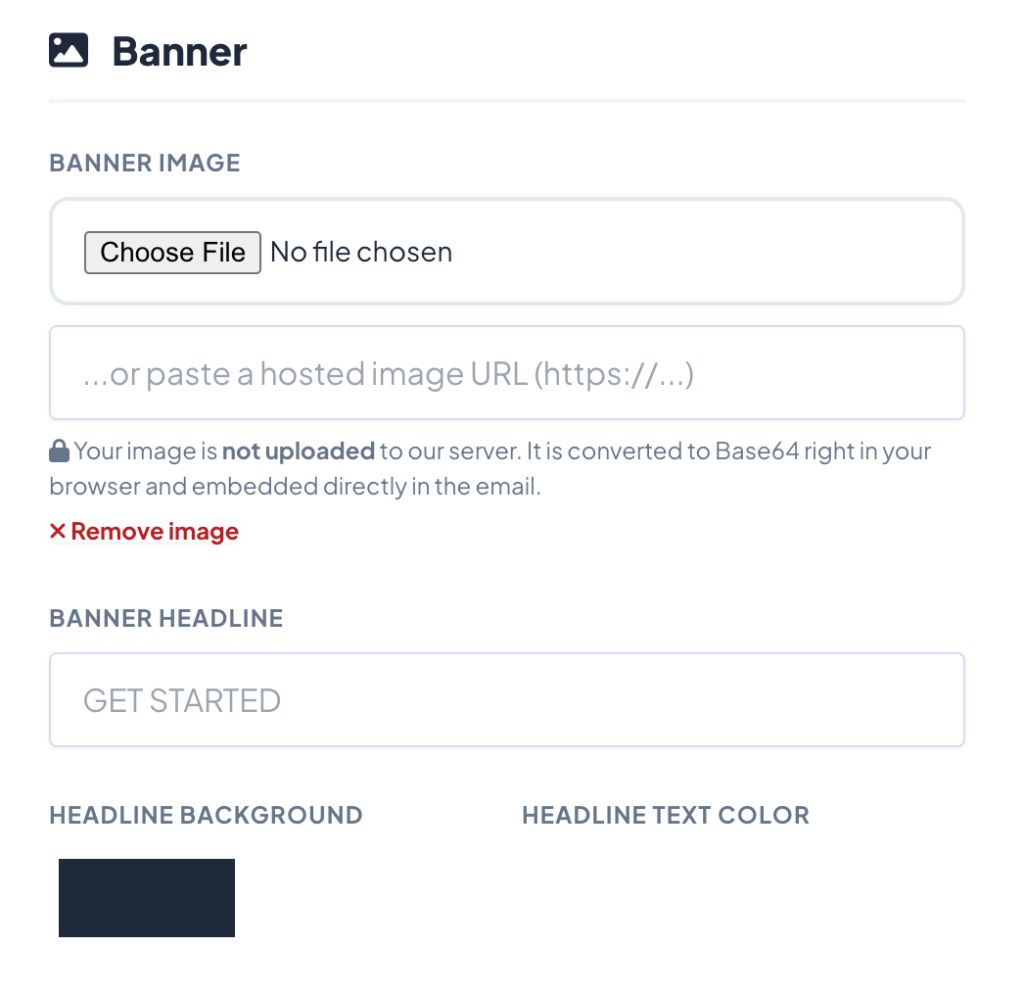
- Banner, buttons and a drawn signature
- Copy Email or Copy HTML Code
Free Invoice Builder
Create a clean, branded invoice, quote, estimate or receipt and save it as a PDF.
- Your logo, line items, tax and discounts
- Totals and due dates calculated for you
- Save a copy on your device to reuse later
Free Brand Kit Builder
Answer a few simple questions and download a printable brand guidelines PDF.
- Brand story, colors and fonts
- Logo rules and brand voice
- A matching email signature
Free Contact Exchange Builder
Create a digital business card: a contact file, a QR code, an email card and printable business cards.
- Contact file (.vcf) for phones and contacts apps
- QR code people can scan to save your contact
- Printable business cards, 10 per page
Free Event Builder
Create a calendar event with reminders and repeats, then add it to your calendar or share it by email.
- Presets for common events
- Calendar file (.ics) for one event or a list
- Email event card and QR code
Free Media Builder
Resize photos and videos for an online store, social media, a website or email with one click.
- Up to 200 photos and videos at once
- Add your logo to every file
- Download everything in one ZIP folder
Free Prompt Builder
Answer guided questions and get a clear, structured prompt you can copy into an AI chat tool such as ChatGPT, Claude, Gemini or Copilot.
- Tips at every step
- A prompt strength score
- Copy your prompt at any time
Your Files Stay Private
Every tool runs in your web browser. What you type and the files you add are not uploaded to or stored on our server.
- No account needed
- No watermark from us
- Free to use
Free Email Templates for Everyday Messages
Skip the blank page. Each starter template fills in professional wording with placeholders like [First Name] and [Company Name], so you only add your details.
- Cover Letter – for job applications
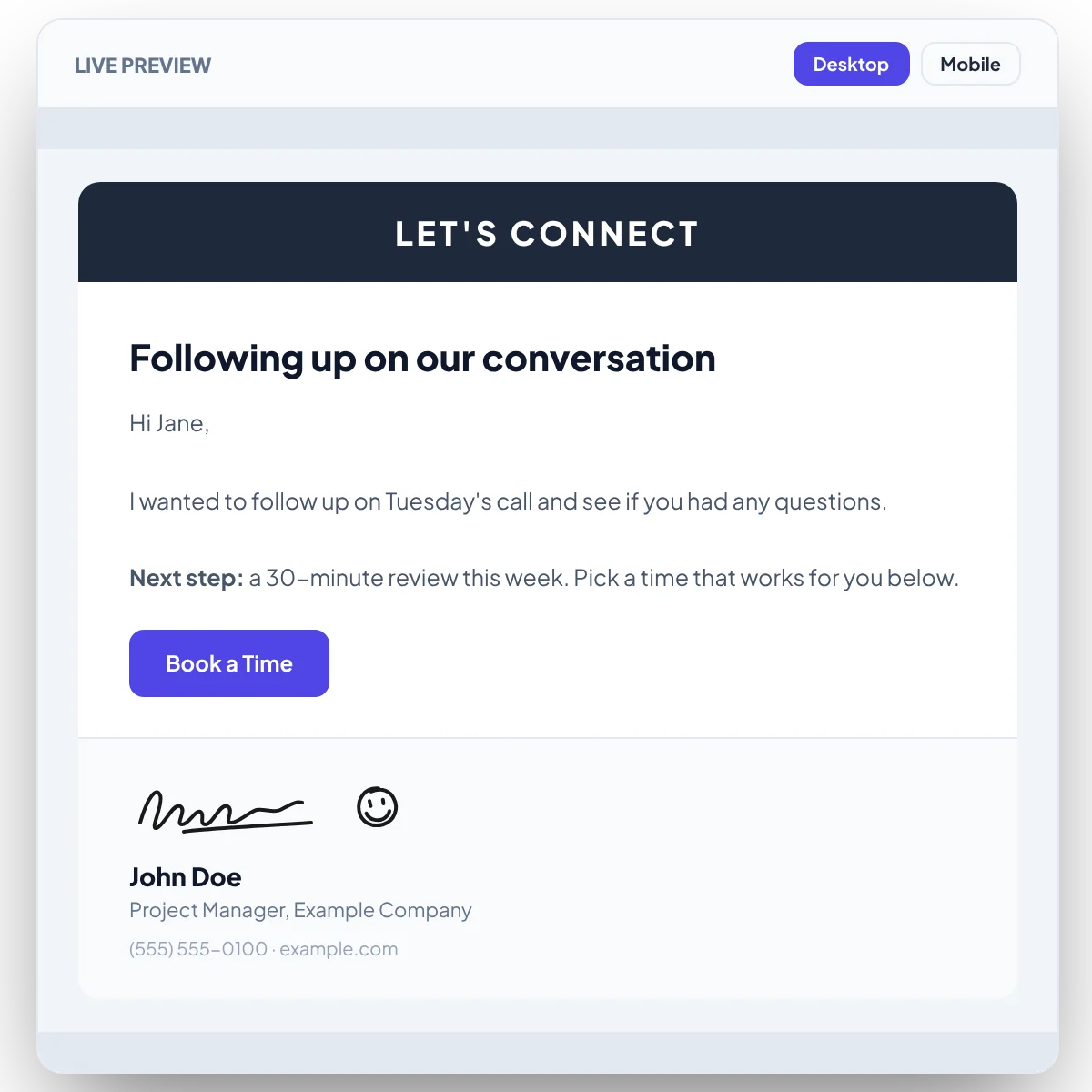
- Follow-Up – for checking in after a conversation
- Thank You – for customers, clients or interviewers
- Meeting Request – with a proposed time and length
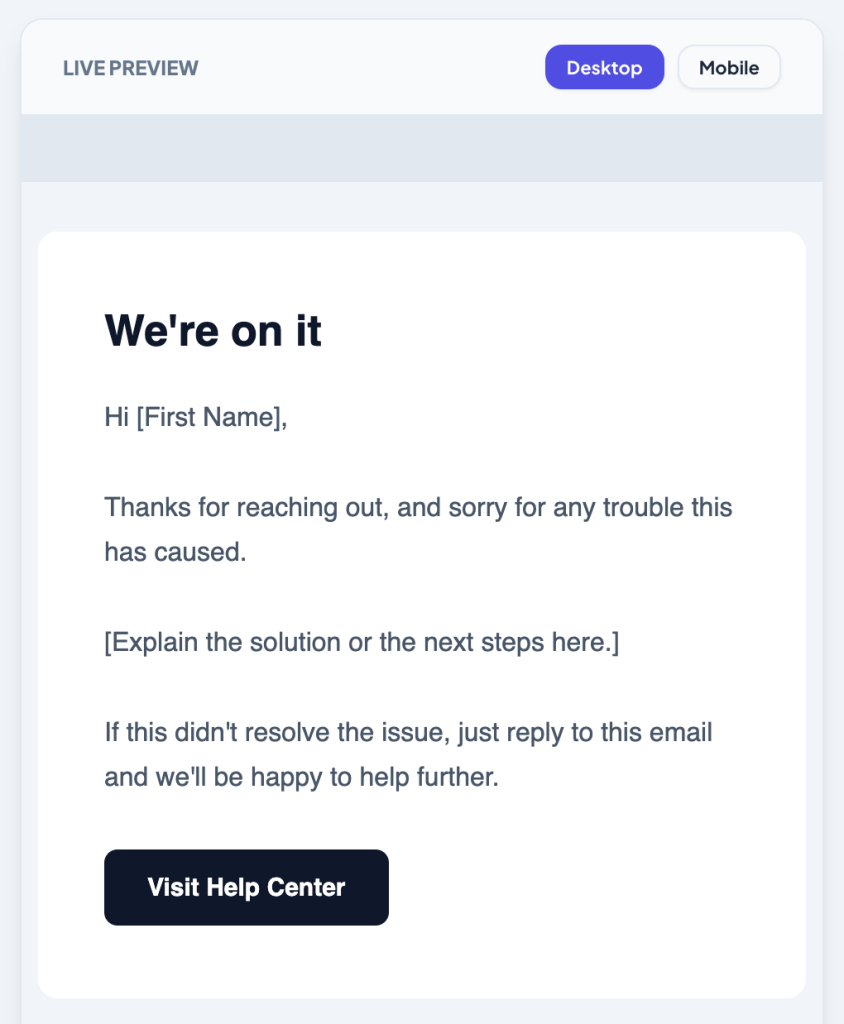
- Customer Support Reply – for help desk answers
- Blank Email – to start from scratch
How the Free Tools Work
Every tool follows the same three simple steps.
Step 1: Pick a Tool
Choose what you need: an email, an invoice, a brand guide, a digital business card, a calendar event, resized photos and videos, or an AI prompt.
Step 2: Fill In Simple Fields
Type your details or add your files, and see a preview of the result as you go.
Step 3: Copy or Download
Copy your email or prompt, or download your PDF, contact file, calendar file, photos and videos.
Private by Design: Your Work Stays on Your Device
Every Greeting Hard tool runs inside your own web browser. There is no login and no database, and what you type is not sent to our server.
- Nothing is uploaded. Your text, images, photos and videos are handled on your device and are not sent to or stored on our server.
- Nothing is saved. Closing or refreshing the page clears your work, so copy or download it first. Some tools can save a file to your own device and open it again later.
- Hidden details removed. Photos and videos saved by the Media Builder leave out hidden details such as location, date taken and camera information.
- Nothing is sent to an AI. The Prompt Builder only creates text for you to paste wherever you choose.
- Online calendar buttons are optional. The Event Builder’s Google Calendar and Outlook buttons put your event details in a link to that service, and only open it when you click them.
50 Calendar Templates
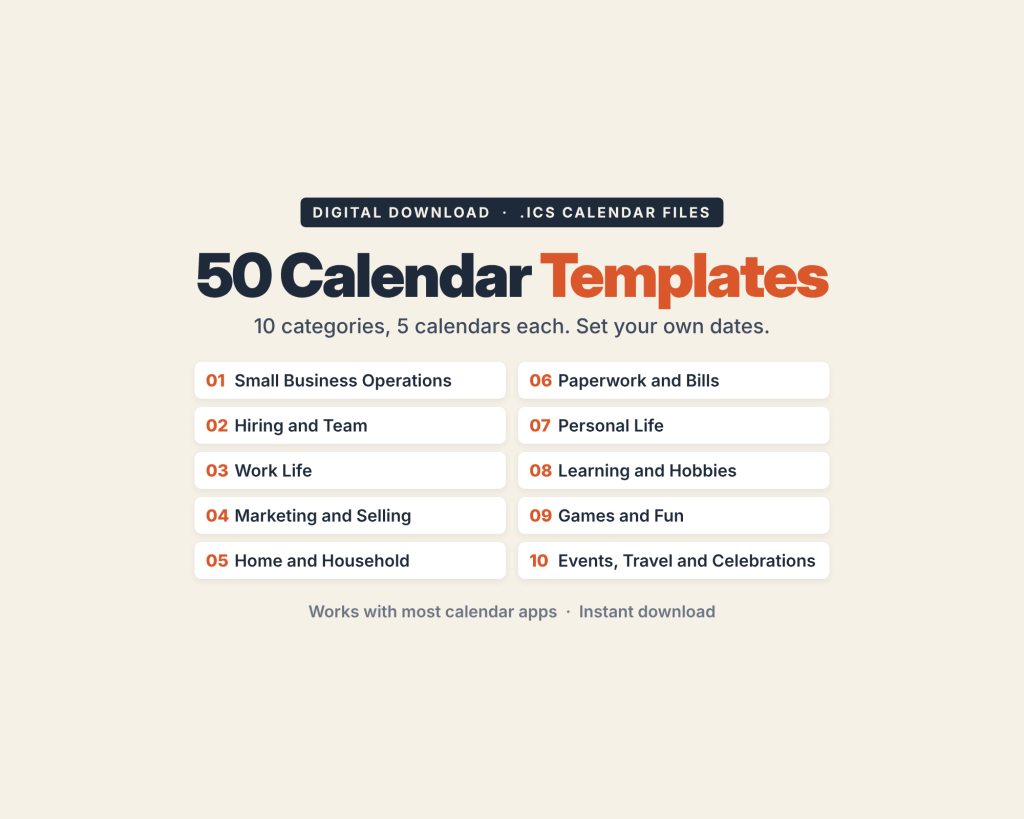
Ready-made calendar files for work, home and everything in between. Pick your date, and every reminder and follow-up moves with it.
- 10 categories, 5 calendars each
- Business, work, home, travel and more
- Works with most calendar apps
- Set your own dates free with our Event Builder
Who Uses Greeting Hard?
Job Seekers
Start from the cover letter email template, build clear AI prompts for resume and interview help, and share a digital business card when networking.
Small Businesses
Create emails and invoices with your logo, write down your colors, fonts and logo rules in a brand guide, and print business cards with a QR code.
Online Sellers
Resize product photos and videos for listings and social media, and add your logo to each one if you like.
Support Teams and Freelancers
Start replies from the customer support email template, create clear invoices for clients, and send calendar events for meetings and appointments.
Frequently Asked Questions
Are the tools really free?
Yes. Every Greeting Hard tool is free to use, with no account, no subscription and no watermark from us on your work.
Do I need to create an account or download anything?
No. Open any tool in your web browser and start right away. There is no sign-up, no login and nothing to install.
Are my files uploaded to your server?
No. Your text, images, photos and videos are handled inside your own browser and are not uploaded to or stored on our server. Images you add to the Email Builder are built into the email you copy, so once you paste and send it, your email app handles it like any other email.
How do I use an email from the Email Builder?
Click Copy Email to copy the finished email, then paste it into a new message in an email app that accepts formatted text. If your tool has an HTML or source-code editor, click Copy HTML Code and paste the code there instead. Every email app handles pasted emails a little differently, so send yourself a test first.
Why don’t my email images show up for some people?
Many email services block images that are built into an email this way. To make images more likely to appear, paste the web address of an image that is already online into the image URL field instead of uploading a file.
Is my work saved anywhere?
No. Nothing is saved, so refreshing or closing the page clears your work. Copy or download what you made before you leave. Some tools can also open a file you saved on your own device: the Invoice Builder and Brand Kit Builder save a .json file, the Contact Exchange Builder opens your .vcf contact file and the Event Builder opens your .ics event file.
What is the Contact Exchange Builder?
It creates a digital business card from one form: a contact file (.vcf) that phones and contacts apps can open, a QR code people can scan to save your contact, a contact card to paste into an email and printable business cards.
What is the Event Builder?
It creates a calendar event with a date, time, location, repeats and reminders. You can download it as an .ics file, open it in Google Calendar or Outlook on the web, copy an event card into an email or download a QR code.
Can I use the tools on my phone?
The tools run in up-to-date web browsers and their pages adjust to fit smaller screens, though they are easiest to use on a computer. Converting videos in the Media Builder needs a browser that supports it, such as a recent version of Chrome or Edge.
Which tool should I start with?
Use the Email Builder to design an email, the Invoice Builder to bill a customer, the Brand Kit Builder to write down your colors and fonts, the Contact Exchange Builder to share your contact details, the Event Builder to create a calendar event, the Media Builder to resize photos and videos, or the Prompt Builder to plan a clear request for an AI chat tool.
Ready to Make Your Work Look Professional?
Start with a free tool today. No account, no download and no cost.